


WPS Office-PDF, Word, Sheet
4.460.61K Reviews
App Specs
- Version
- 26.8.0
- Updated On
- License
- Free
- Downloads
- 500,000,000+
- Developer
- WPS SOFTWARE PTE. LTD.
- Categories
- Productivity
- Platform
- Android
Screenshots

 Analysis by AppCompare
If you're like me and often find yourself juggling between documents, spreadsheets, and presentations, then you know how essential it is to have a reliable office suite on your mobile device. Enter WPS Office-PDF, Word, Sheet, a versatile app that promises to bring all your office needs into one handy package. I've been using it for a while now, and here’s what I think about it.
Readable tools for small screens
The first question I have with a mobile office suite is whether I can find the right tool without hunting through layers of menus. The layout here makes common document tasks feel approachable, and the toolbar keeps frequently used controls close at hand. That matters when I only have a few minutes to correct a heading or check a figure rather than settle in for a full editing session.
The app is a productivity tool from WPS SOFTWARE PTE. LTD. Its average rating is 4.5 from around 5.9 million ratings, and it has more than 500 million installs. Those figures suggest that it has become a familiar option for many people, but popularity does not automatically make every screen comfortable for every reader. Dense pages, long spreadsheets, and detailed formatting controls still take patience on a phone, so I find a tablet or a larger display more comfortable for extended work.
Its document, spreadsheet, presentation, and PDF tools sit within one app, which can reduce the back-and-forth involved in handling mixed work files. The suite supports familiar file types such as DOCX, XLSX, PPTX, and PDF. That breadth is useful when people send files in different formats, though I would still inspect a complicated document after opening it: elaborate page layouts and carefully positioned elements are more likely to need a final check than plain text.
Working across formats, devices, and situations
WPS Office-PDF, Word, Sheet is designed to be an all-in-one office suite, covering everything from document editing to PDF management. The app supports a wide range of file formats, meaning you won’t have to worry about compatibility issues. Whether you're dealing with .docx, .xlsx, .pptx, or even the ubiquitous PDF, this app has you covered.
User Interface and Experience
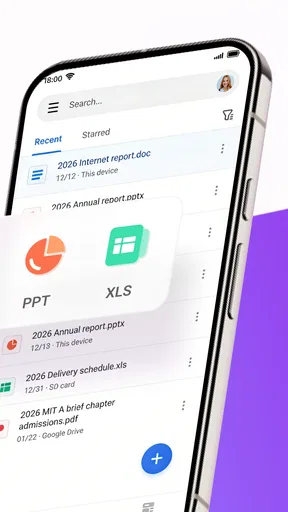
The first thing that struck me about WPS Office was its clean and intuitive interface. Navigating through the app is a breeze, with all the tools you need conveniently placed at your fingertips. The dashboard is sleek and doesn’t overwhelm you with information, which I appreciated. It's a breath of fresh air compared to some other office apps that tend to cram too much into a small screen.
One of the standout features is the easy-to-use toolbar. It’s streamlined, ensuring that you can find what you need without having to dig through menus. The app also supports cloud integration, so you can easily access your documents from Google Drive, Dropbox, or other cloud services.
Worth Reading Before You Choose

Baby Panda World Brings Quick Play to Modern Phones, but Its Game Library Feels Busy

ESPN’s Live Game View Makes Following Close Games Easier

QuizzLand Review: A Good Fit for Short Trivia Breaks, Not Every Player

Basketball Stars: Multiplayer Is Fast, but Can It Recover When Matches Go Wrong?

WEBTOON Turns Phone Updates Into a Better Reading Routine

Link to Windows Runs on Shared Habits, Not Social Feeds
Editing Capabilities
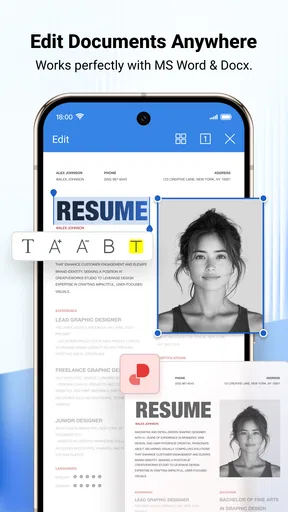
When it comes to editing documents, WPS Office doesn’t disappoint. The word processor is robust, offering a variety of fonts, styles, and formatting options. I've used it to draft everything from simple notes to more complex reports, and it handled all tasks with ease.
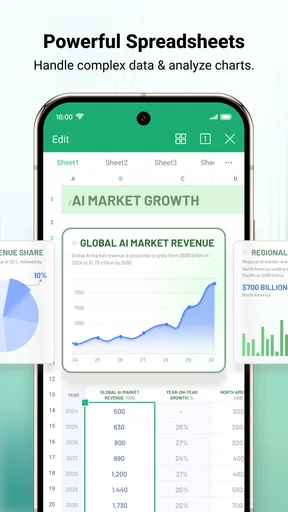
For those working with spreadsheets, the app provides a comprehensive set of tools. You can insert formulas, create charts, and even collaborate with others in real time. The presentation feature is also noteworthy, allowing you to craft professional slideshows with animations and transitions.
PDF Management
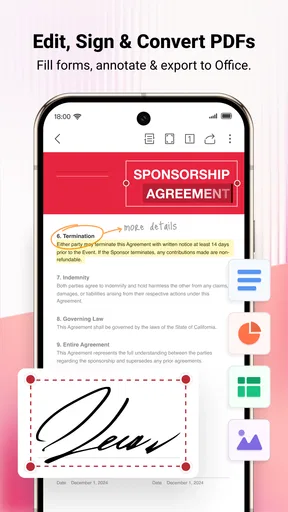
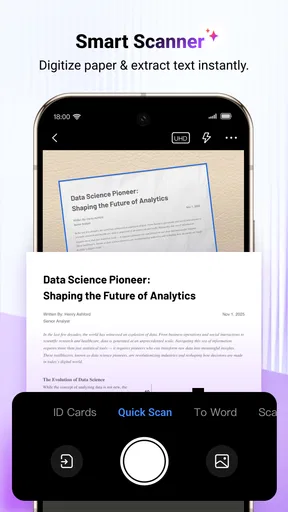
One of the main reasons I was drawn to WPS Office is its PDF capabilities. Not only can you view PDFs, but you can also annotate, sign, and convert them to other formats. This is a game-changer for those of us who deal with PDFs regularly. The app even allows you to scan documents and save them as PDFs, which is super handy for archiving paper documents.
Making the workflow more dependable
A practical way to use the suite is to separate quick edits from final checks. I might fix wording in a DOCX on my phone, then review the page breaks and spacing on a larger screen before sharing it. For a spreadsheet, I would use the mobile version to inspect a few figures or add a straightforward formula, but save deeper analysis and careful cell selection for a setup with more room. This division keeps mobile editing useful without pretending a phone is a full desktop replacement.
Cloud access can make handoffs easier, but I treat it as a convenience rather than a backup plan. When I’m dealing with something important, I check that the intended file is available in the location I expect and that I’m editing the latest copy. A simple habit that avoids confusion is to give working files clear names before moving between devices; it is easier to spot the right draft than to guess from several nearly identical filenames.
PDF conversion also benefits from a quick quality check. A converted document may be easier to edit, but conversion can change spacing or the placement of visual elements. I would keep the original PDF intact, convert a copy, and compare the result before sending it onward. For a form that only needs a signature or a brief note, annotating the PDF directly is often the cleaner route than converting it and risking a layout shift.
Motor and sensory considerations
Touch-first editing is convenient, but it can be fiddly when a task needs precise selection. Choosing a small cell, adjusting a cursor between two characters, or tapping a narrow control may take a few tries, especially when I’m moving around or using the phone one-handed. A stylus or a larger screen can make those tasks more manageable, but neither changes the fact that detailed document work demands steady attention.
For readers who need larger text or stronger visual separation, I would test a real file before relying on the app for a long session. A short note is a poor test of readability; a dense spreadsheet or a PDF with small print gives a more useful sense of whether the content is comfortable to follow. I also avoid assuming that a file will become accessible simply because it opens: scanned pages and complex layouts can remain difficult to read or navigate.
Useful in short windows, with sensible limits
The app is free to download, is rated for Everyone, and its current version is 18.24, with Android 7.0 or later required. Optional in-app purchases range from a few cents to around $240 per item, so I would check what a particular tool requires before building a regular workflow around it. You can begin with basic tasks without treating every paid option as necessary.
A realistic day might start with a classmate sharing a spreadsheet, continue with a quick correction to a report while waiting for an appointment, and end with a scanned receipt saved as a PDF. Keeping those jobs together is the main convenience I notice. It is especially useful for students, freelancers, and people who often review files away from a desk. Someone who mainly writes long reports, manages complex spreadsheets, or needs precise desktop publishing controls may be better served by a desktop office suite, using this app for review and small edits instead.
Compared with using separate word-processing, spreadsheet, and PDF apps, this suite can reduce app switching and make mixed-format work easier to keep together. The trade-off is that an all-in-one toolbox can feel less focused than a dedicated app. If your work is almost entirely PDF markup, a PDF-first tool may offer a more direct routine; if collaboration and compatibility with a particular workplace ecosystem are central, the tools already used by that group may make sharing simpler. I see this app as a flexible middle ground, not a universal replacement.
Performance and Reliability
I’ve been using WPS Office on both Android and iOS, and I have to say, it performs smoothly across the board. The app is stable, with no noticeable lag or crashes during my use. It’s lightweight, so it doesn’t hog your device’s resources, which is a big plus if you’re working on an older phone or tablet.
Battery consumption is also minimal, which is a relief when you're on the go and need your device to last. Whether you're editing on the commute or reviewing a presentation at a café, WPS Office doesn’t drain your battery unnecessarily.
Where I would draw the line
For quick access across devices, cloud integration is handy, but a synced file is not the same as a carefully managed archive. I keep important originals in a known location and review the final version before sending it, particularly after changing a PDF or a document with intricate formatting. That small extra step is worthwhile when a file will be used by someone else or needs to look consistent.
The app’s broad feature set is its biggest strength and also a source of friction. A person who only wants to read a document may find editing tools unnecessary, while someone who needs advanced, exacting control may find mobile controls slower than a keyboard and mouse. I would also avoid making a phone the only place where a long, critical document is reviewed. The screen is simply less forgiving for spotting subtle layout problems than a larger display.
Final Thoughts
All in all, WPS Office-PDF, Word, Sheet is a fantastic choice for anyone looking for a comprehensive office suite on their mobile device. It combines a user-friendly interface with powerful features, making it a strong competitor in the office app space.
If you’re tired of switching between different apps for your office tasks, give WPS Office a try. It’s particularly ideal for professionals and students who need a reliable, on-the-go solution for document management. You can download it directly from the Google Play Store or the Apple App Store, and start enhancing your productivity today!
My inclusive takeaway
I’d recommend it most to someone who values having several kinds of office work within reach and is comfortable checking how a document behaves on a small screen. Its straightforward entry points and broad file handling can help people working in changing places and at different paces, while careful file checks make the experience more dependable. I would not choose it as a guaranteed answer to every access need: if a particular user depends on a specific reading, input, or navigation setup, testing that exact workflow with their own files is the sensible first step.
Pros
- Comprehensive suite for document editing.
- User-friendly interface with smooth navigation.
- Supports a wide range of file formats.
- Offline access to documents available.
- Regular updates with new features.
Cons
- Ads in free version can be intrusive.
- Some features require a premium subscription.
- Occasional lag with large documents.
- Limited cloud storage options.
- Collaborative features could be improved.
FAQs for WPS Office-PDF, Word, Sheet
What is WPS Office and what features does it offer?
WPS Office is a comprehensive office suite available for Android and iOS, featuring tools for word processing, spreadsheets, presentations, and PDF management. It supports a variety of file formats, ensures seamless cloud integration, and offers a user-friendly interface. Ideal for both professional and personal use, WPS Office brings desktop-class functionalities to mobile devices.
Is WPS Office free to use, or does it require a subscription?
WPS Office offers a free version with essential features suitable for most users. However, it also provides a premium subscription that unlocks advanced features, removes ads, and adds more cloud storage options. The subscription is optional but enhances the overall user experience with additional capabilities.
How compatible is WPS Office with Microsoft Office files?
WPS Office is highly compatible with Microsoft Office file formats, including DOCX, XLSX, and PPTX. Users can easily open, edit, and save files without losing formatting. This compatibility ensures that users can transition between WPS Office and Microsoft Office seamlessly, making it a flexible option for document management.
Does WPS Office support collaboration and sharing features?
Yes, WPS Office supports collaboration through its cloud services, allowing users to share documents and collaborate in real-time. It integrates with popular cloud storage services like Google Drive, Dropbox, and OneDrive, facilitating easy sharing and teamwork. Users can also track changes and comments within documents.
How secure is WPS Office for handling sensitive documents?
WPS Office prioritizes user security by implementing encryption for file storage and transfer. It ensures that sensitive documents remain protected against unauthorized access. The app also offers password protection for individual files, adding an extra layer of security for users managing confidential information.


